1. Light text on a dark background
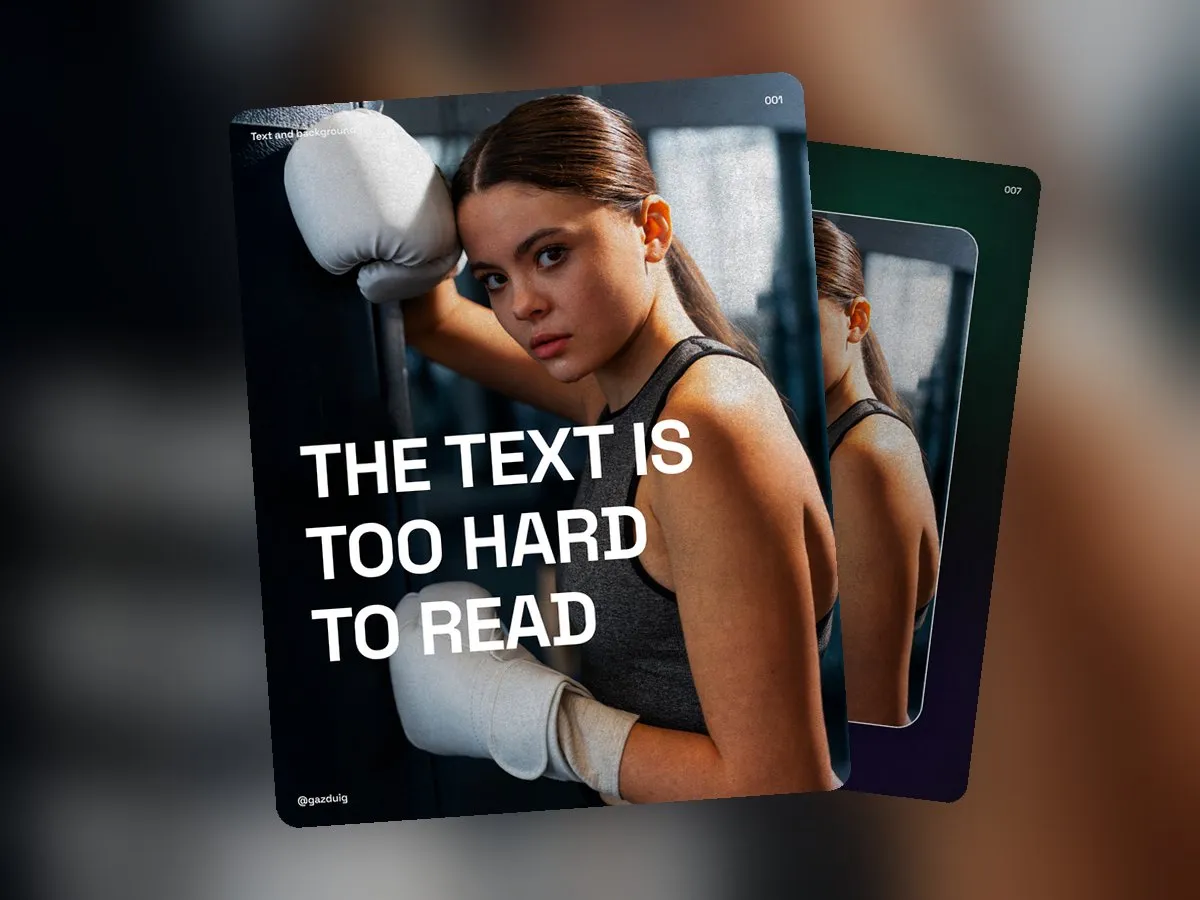
Everyone knows the basic rule that light text on a dark background should stand out. On a plain background that holds true, yet a photo is rarely a single colour, and highlights and patterns tend to appear exactly where you want to place the text.
If the background is too busy, the text is hard to read, and this hurts especially in ads and posts, because viewers only pause on them for a moment. Whatever they cannot read in that moment, they will most likely never read.

2. A circle nobody notices
For the fix, draw a circle and give it a radial gradient. Make the centre black at 70% fill and the edge black at 0% fill, so the circle fades out completely towards the outside.
Once that is done, blur it a little so it has no hard edge. Before blurring you can still see that it is a circle, after blurring all that is left is subtle shading that the eye does not register as a separate element.
3. Behind the text
Place the blurred circles behind the text, and where the text is longer, use several of them side by side. The rest of the photo stays exactly as it was, only the background behind the letters becomes a little darker and calmer, and that is enough to make the text stand out.
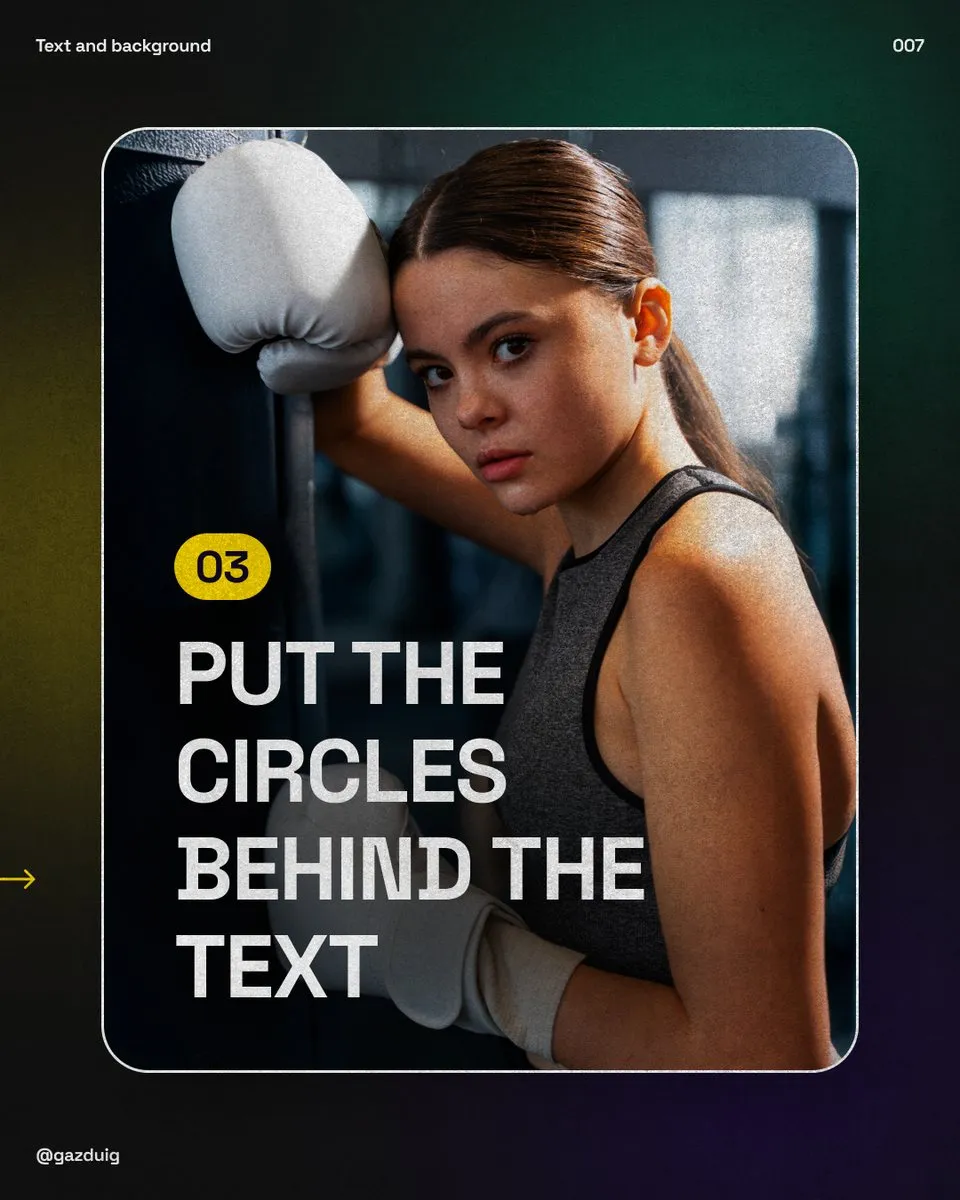
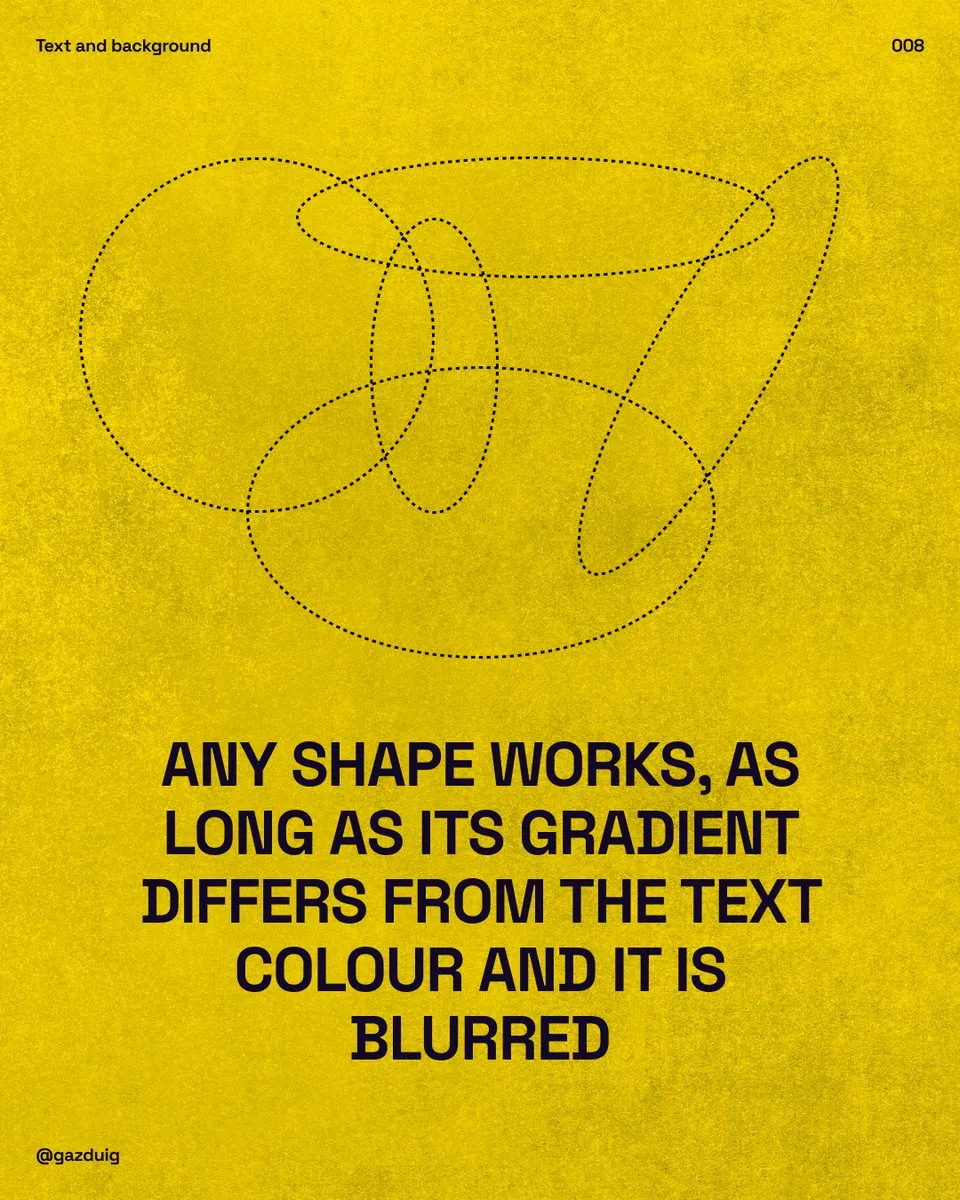
The shape and size do not matter, as long as the gradient differs from the colour of the text and is blurred. For dark text the same method works with a white gradient.
4. Why a blurred patch
Many people put a dark layer over the whole photo at this point, which makes the entire image dull and grey when only the text needed help. A hard-edged, solid box behind the text makes the caption readable, yet it looks heavy and stuck on, and cuts the image in two.
The blurred patch sits between the two. It darkens only where needed and its edge melts into the photo, so the mood of the image stays while the text still stands out.
5. In Figma and Photoshop
The steps above are for Figma, where the whole thing takes a few clicks. In Photoshop you will need the brush tool with 0% hardness and an opacity between 15 and 30%, and a few strokes give you the same effect.
If you put several circles behind the text, group them with the text. That way, when the graphic later has to be resized, the patches move with the caption and you do not have to nudge them back into place one by one.
6. Before you send it out
For ad graphics and posts this is one of the quickest fixes you can make to a creative, and it is often worth more than hunting for a new photo. Before you send a graphic out, look at it on a phone at a small size, because readability is decided where your audience will see it.
Think also of people with weaker eyesight, or those glancing at their phone in bright sunlight on the move. For them, good contrast is the difference between reading the graphic and scrolling past it.
Once text and background are in order, it is worth checking the proportions of your colours as well, which I wrote about in more detail in the article on the 60/30/10 rule.
The original post on Instagram