1. When a cut-out makes sense
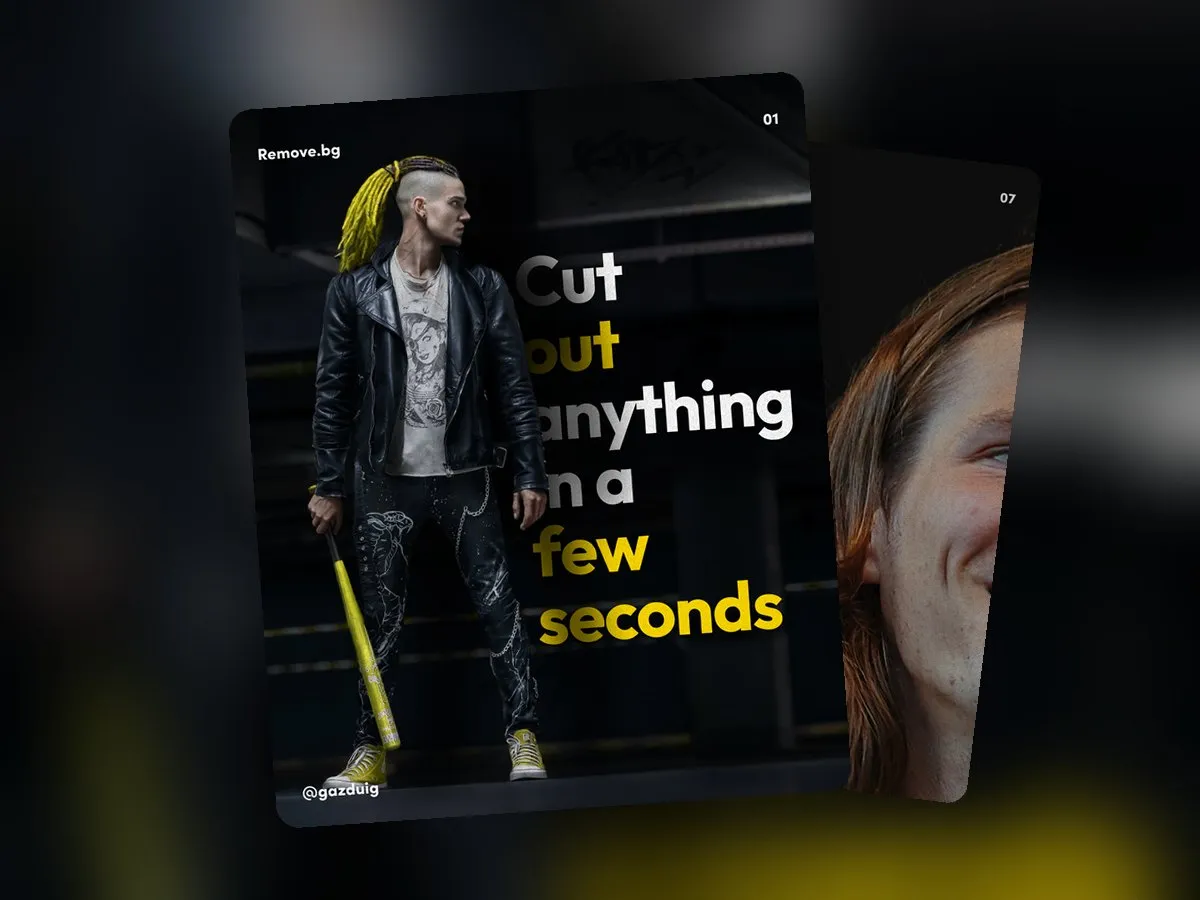
A cut-out photo is most useful when you want to place the figure among your own colours and graphic elements, and the original background of the photo would only get in the way. This comes up more often than you would think.
- Ad creatives and posts, where the image sits on your brand colours.
- Offline materials, such as a company brochure or a roll-up banner.
- Banners, where space for the essentials is tight and the background would only take it up.
- UI design, where a product photo has to fit into a card or a header.
2. Why it looks more polished
A plain photo brings its own world with it, background and lighting included, and that is hard to fit with your brand identity. A cut-out figure becomes an element you can place on a coloured base or let overlap a text box, so the image becomes part of the identity. The same figure can be reused across formats, placed differently in a landscape banner than in a portrait story, while the background always adapts to the surface.

3. How remove.bg works
For years we used remove.bg for this. You upload the image, the background disappears automatically within seconds, and if the tool got something wrong, an editor lets you restore or erase details. In the end you get an image with a transparent background that you can drag into any design program.
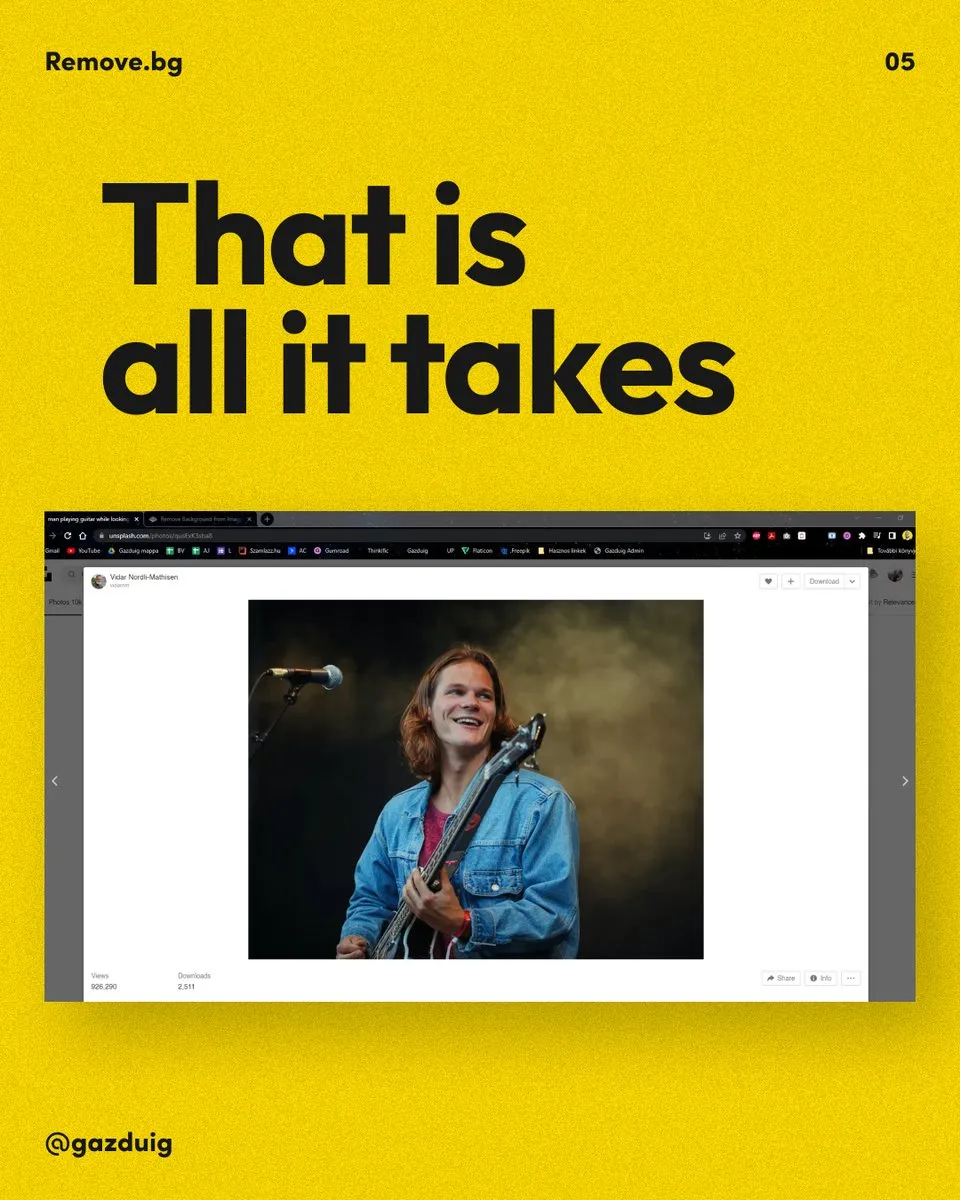
The remove.bg background remover has since become part of Canva and the separate website is being retired, so it is now worth looking for the feature inside Canva.
4. The same in other software
One-click background removal is now built into most design tools. In Photoshop the Remove Background quick action does it, and in Canva the Background Remover. Figma's paid plans can also remove a background with AI, so it makes sense to stay in the program where you are making the graphic anyway.
5. After the cut-out
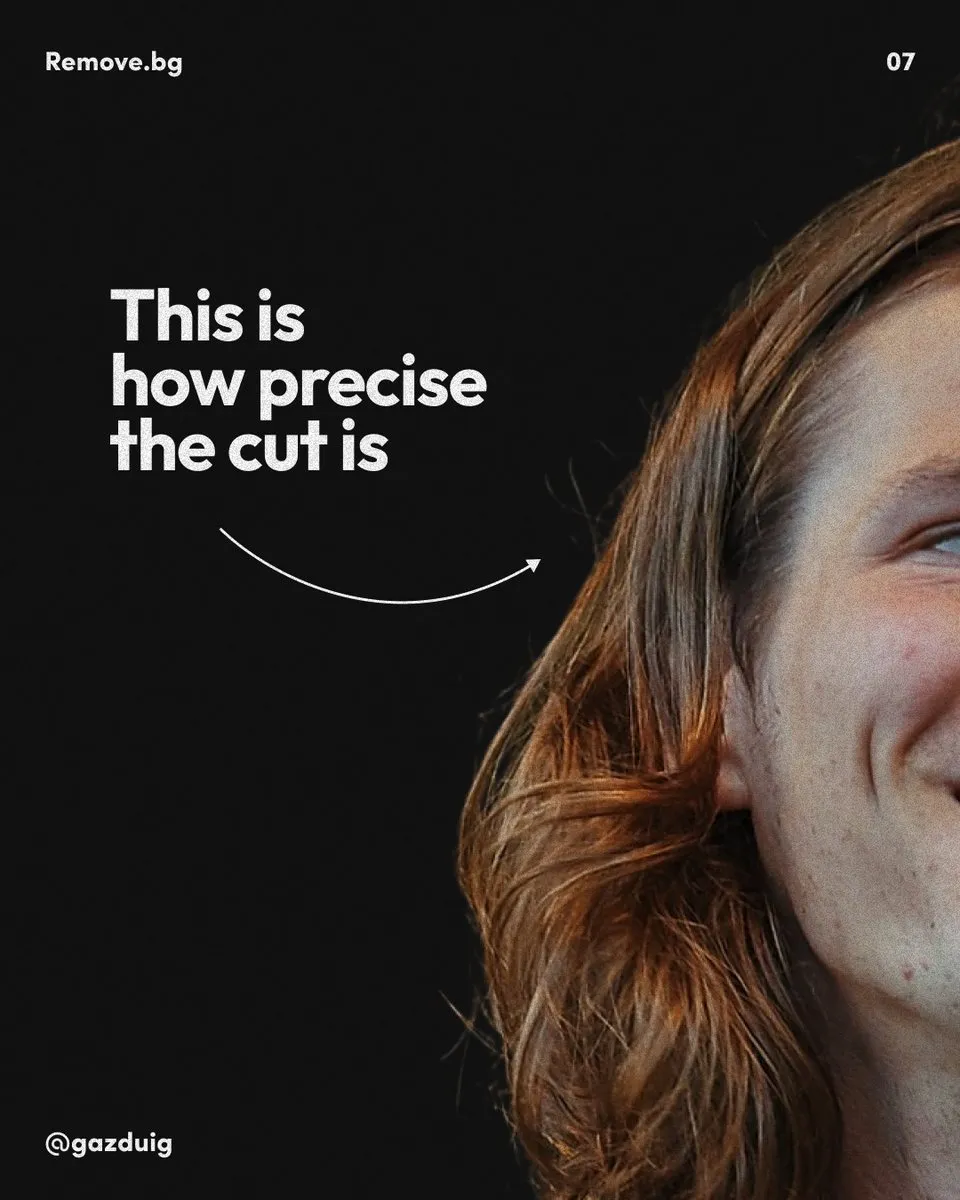
- Check the edges at 100 percent zoom, especially around hair and translucent parts, because that is where automation slips most often.
- Try the cut-out figure on both light and dark backgrounds to see whether any trace of the old background remains.
- Add a subtle shadow underneath so the figure does not float on the surface.
- Start with a sharp, good-quality photo, because no tool can bring back blurry edges.
 Creative graphics We often work with cut-out figures in our ad creatives, because this way the image can stand on the brand's own colours and shapes. See the case study The original post on Instagram