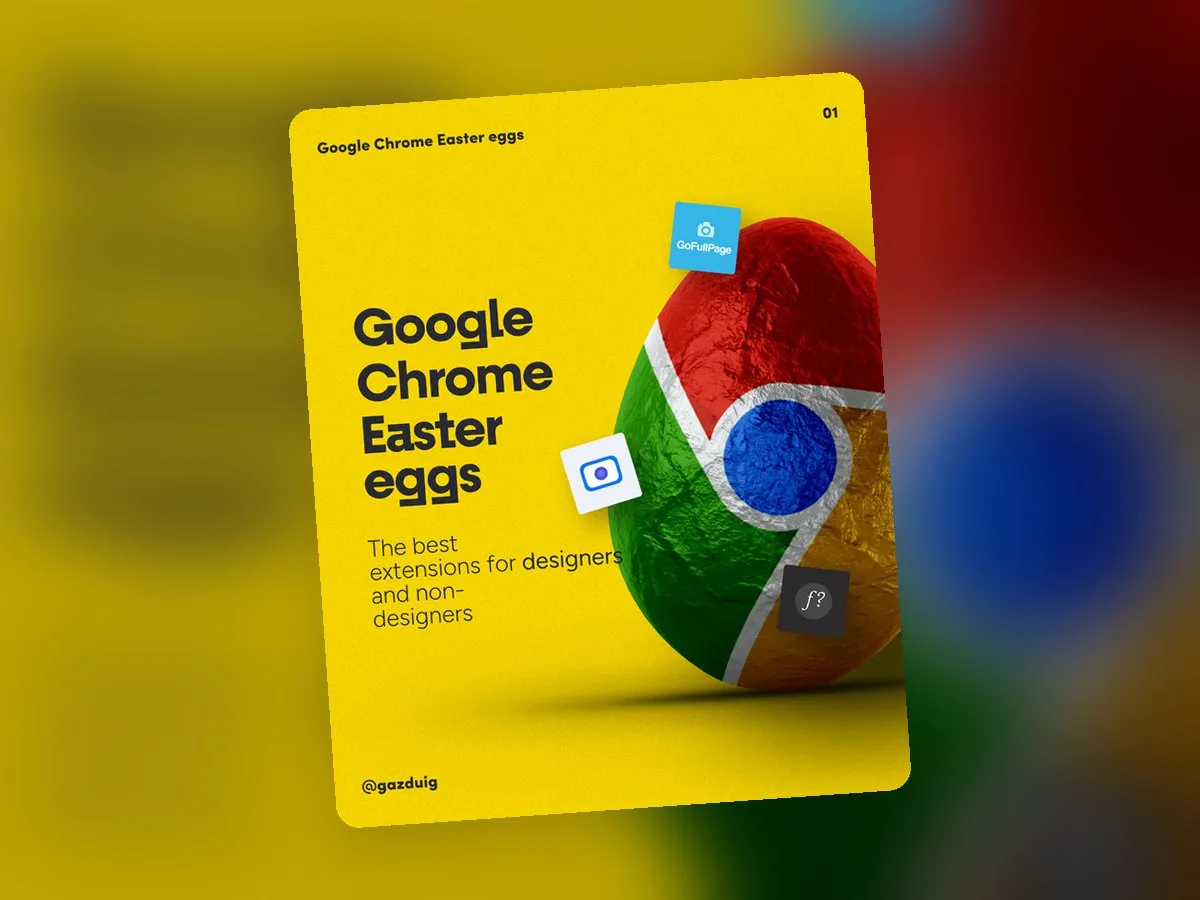
We use these little helpers every day when we review a client’s site or collect references, and often simply out of curiosity about why another brand’s interface works so well. They are useful even if you are not a designer, for example when you need to tell a developer or an agency exactly what you see and what you would like.
1. Typefaces with one move
Once WhatFont is switched on, you just hover over the text and the extension shows which typeface it uses. If you click on it, a small panel also shows the font’s source, the line height and the letter spacing, and you can copy the values with one click.
This is especially handy when you want to explain the mood of a website to someone or are looking for a typeface with a similar character for your own brand. A designer can do far more with the name of a typeface than with “some kind of modern, rounded font”.
2. A whole page in one image
GoFullPage saves the entire page, from the header to the footer, with a single click, and you can download it as PNG, JPEG or PDF. This is how we collect references at the start of a new project and how we record the current state of a site before we start reworking it.
If you want to show a page to your team or a partner, annotating one full image is also much easier than sending ten separate screenshots one after another.
3. Colours as codes
With Eye Dropper you can read any colour on any website and get it as a HEX, RGB, HSL or HSV code. You can also save the picked colours into palettes, so at the end of a longer browsing session everything you liked stays in one place.
4. Styles and images from a page
If you want to know the sizes and spacing an element is built with, Chrome’s built-in developer tools are enough. Right-click the element, choose Inspect, and the panel that opens shows every CSS property that applies to that button or box.
I’m a Gentleman downloads all the images on a page with one click, which saves a lot of time when you put together a moodboard or gather the materials of your own old website. Treat the downloaded images as your own reference, because using photos and graphics found on other sites requires permission from the rights holder.
5. Screen recordings
You often don’t even need an extension to record your screen, since on macOS you can record video with Command + Shift + 5 and on Windows with the Snipping Tool. If you want to send the recording as a link straight away, the Loom Chrome extension is the more convenient route.
A short video in which you click through a bug is often worth more than a long email, because the developer or the designer sees exactly what you see.
6. Before you install them
Extensions can access the pages you open, so only install ones that come from a known developer and are updated regularly. You can check this on the extension’s Chrome Web Store page, and if you have not used an extension for months, feel free to remove it or switch it off.
The original post on Instagram